Restore Faded Old Photos with AI
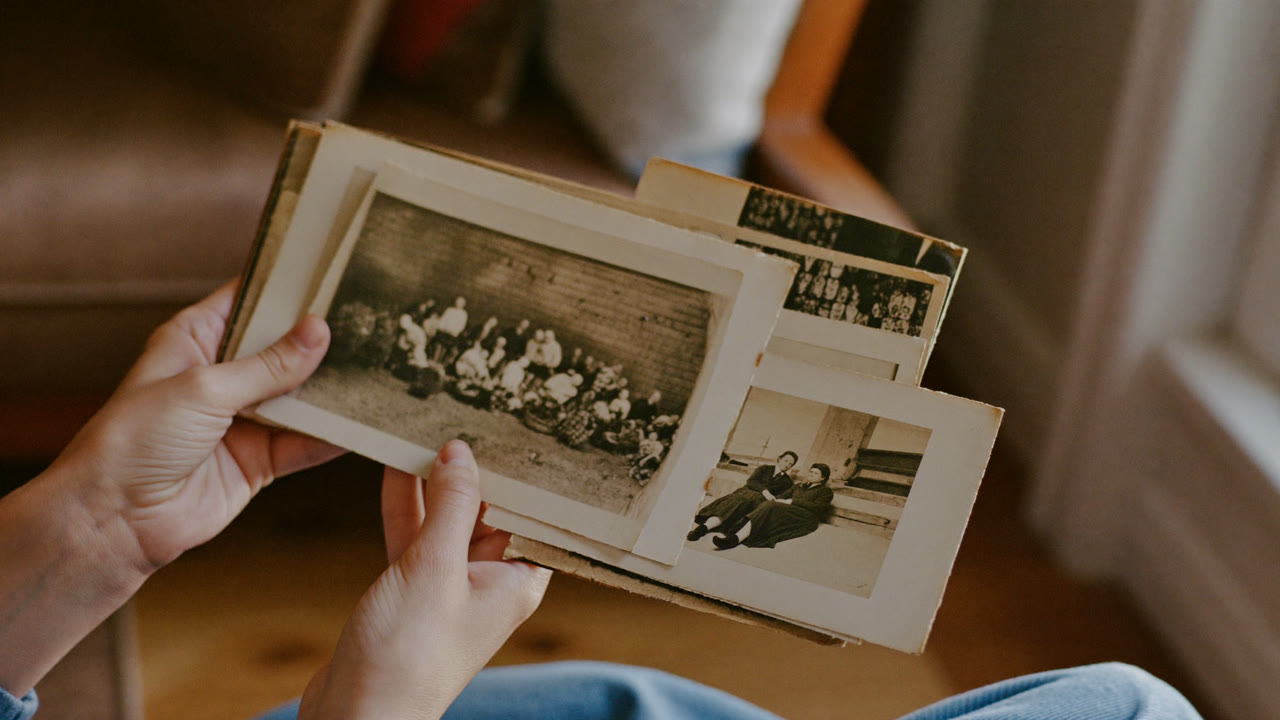
That faded black-and-white photo in a drawer, the old picture full of scratches and washed-out color — we all have one, right?
Now AI can bring it back sharp and in color. Your parents', your kids' baby photos, like new. Here's how to do it — easily, and for free. 👇
The verdict first (30-second version)
| When you have this | AI does this |
|---|---|
| 🩹 Scratches, creases, stains | Erased automatically |
| 🎨 Black-and-white photo | Turned into natural color |
| 🔍 Blurry, low quality | Sharpened up |
| ✂️ Messy background | Just the person, cleaned up |
Let's look at each one, nice and simple. 👇
📷 What you can do — 4 things
1. Repair scratches and damage — AI fills in torn and stained spots on its own.
2. Black-and-white → color — It adds natural color to old black-and-white photos. That era comes alive again.
3. Better quality (sharper) — It makes blurry, small photos crisp and larger.
4. Tidy up the background — Keep just the person, or swap the background for a clean one.
💡 These photo tools don't need you to type anything — you just 'upload' the photo and they handle it automatically. No prompts to learn.
🖐️ How to do it (3 steps)
- Take a clear photo of it with your phone or scan it to make a file
- Upload it to an AI photo-restoration tool
- Press "Restore / Colorize / Enhance" and save the result
⚠️ Careful — always keep the original. AI restoration is a 'best guess,' so faces and colors can come out a little different from reality. The more precious the photo, don't delete the original — save the restored version separately.
4 photo-taking tips for a better restoration
How you shoot the original makes a huge difference in the result.
- Keep it flat — press the photo flat and shoot straight down from above
- No glare — avoid glass or coating reflections; use natural light by a window
- Head-on and filling the frame — straight on, not at an angle, with the photo filling the screen
- As bright and large as possible — details get lost when it's dark
💡 Shooting with a free scanner app straightens it automatically, for better results.
FAQ
Q. Is it free? Plenty of tools do basic restoration and colorizing for free. Ultra-high resolution or bulk work is sometimes paid.
Q. Will the face look weird? It can change a little sometimes. If you don't like it, try again or lower the strength.
Q. Which tool should I use? Ones that come up under 'photo restoration,' 'AI photo enhancer,' or 'black-and-white colorizer.' Stick to official, well-known ones.
Read next
- 👉 AI Image Tools Compared — Midjourney · Leonardo · DALL·E · Nano Banana
- 👉 Free AI Image Generators — Picks We Actually Tried
Hashtags: #photorestoration #oldphotos #colorize #usingAI #memories